Menu

Thursday, 2 February 2017

PopAds Lesson 3

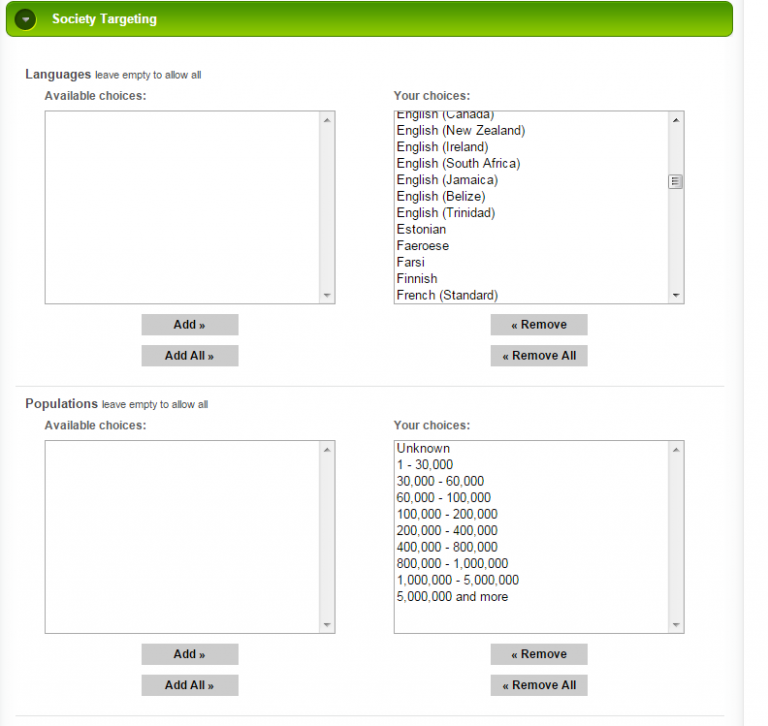
SOCIETY TARGETING

In this section, you can choose desired languages and populations.
ENVIRONMENT TARGETING

You can choose Operating Systems, Browsers and Screen Resolution..
You will noticed that list of available operating systems is really long, including some really old operating systems. If you want to include all operating systems, do not make any choices here and leave this field empty.

OS AND BROWSER TARGETING

We have the similar situation with Browsers. There is a long list of browsers even with different versions of browsers. You can choose what best suits you or leave it empty to include all available browsers. Click on browser to add it to Your choices. If you make a mistake, you can always remove browser from Your choices.
Screen Resolution

You will find all known formats of screen resolutions. If you want to include them all, leave it as it is. If you want to exclude some resolutions from your choices, click on specific screen resolution and remove it by clicking on button Remove.

DEVICE TARGETING

Form Factors include options like Desktop/Notebook, eReader, Gaming Console, Music player, Smart TV, Smartphone, Tablet and unknown form.
Again, it is possible to make a selection of almost all available devices. But if your devices is not on the list, you always have the option “Unknown device”. You can choose one of the devices or all of them. Or you can choose three, five types of devices.

CONNECTION TARGETING

When we were creating this campaign, Connection type choices were automatically set to all choices. This means that all available connection types will be able to receive our ad. Those types are: business, internet cafĂ©, cellular, college, government, library, military, residential, school, traveler…
Connection Speed includes choices such as Dialup, Cable/DSL, Corporate and Cellurlar/Carrier.
When we were creating our campaign, our targeted country was Belgium and this is why we have these options:
These are Internet Service Providers available in Belgium. Since we want to include them all, we will leave this selection empty.

TIME TARGETING
You can choose times for displaying your campaign. Make sure to also choose appropriate time zone. Our targeted country is Belgium and this is why we chose Europe/Brussels time zone.

WEBSITE TARGETING

Popads has tons of websites in their network. You can select website targeting mode by switching tabs:

If you specify websites you want to exclude, you will get traffic from all other website in Popads network, excluding the websites you listed:
If you only want to get traffic from certain websites, you will need to list them in your Include Websites list:


PopAds Lesson 2

BUDGETS

First you need to enter the maximal price you are willing to pay for a single popunder. If you enter low bid, you will not get the greatest results for your campaign. Your ad will probably display on slower traffic with lower quality.
Daily budget is the limit you will set for daily costs or your campaign. If you leave this field empty, you will have no limits for your daily budget.
Total budget can be topped-up later. In order to have any budget, you need to top it up.

THROTTLING

Throttling can be Disabled, set Manually or Automatically.
When reducing the traffic speed manually by percentage, you will slow down your campaign speed. It is not recommended to use this option for new campaigns.
With Automatic Throttling, you can set the maximum number of impressions (traffic speed):
Or you maximum amount of spending per time unit:

CATEGORIES


There is wide range of available choices. You can add all or choose from Categories such as Adult content, Sport, Health, Internet, Money, Science, Shopping…
By clicking on button Add, what you chose in available choices will show up in Your choices.

COUNTRY TARGETING

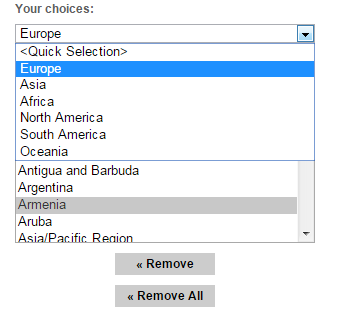
On the right side, you will have a list of all available countries
If you click on Europe, all the European countries will be highlighted which will make your country selection easier.


Wednesday, 1 February 2017

PopAds Lesson 1

             How to Setup a Campaign on Popads


Popads is a paying advertising network with tons of traffic for both desktop and mobile, in many GEO locations. It is specialized in pop-unders.
When creating a campaign, under Advertising type you will have options: pop-under, pop-up, tab-under  (only works with Chrome browser) and tab-up .
Pop – unders are pop-up ads that open in new window of your browser, usually behind the main window and are visible when user closes or minimizes the main window.
When you register with Popads and your email gets activated, you can log in to Advertiser’s Panel. Here you will have numerous options.
Let’s start by creating our first campaign!

STEP 1 – NEW CAMPAIGN

On the left-side of your panel, click on button New Campaign:

General Information
First step is to choose a name for your campaign. In our example, we will use “Slim and Fit”.
You can choose to enter your landing page URL and to use only one URL, or you can use multiple URLs.
Example of Single URL:
Example of using Multiple URLs:
Do not forget to include “http://” when entering your URLs.

Quality
This is the quality of the website which will display your advertisement.
Frequency Cap
Here you will choose how often your landing page will be displayed to one user. You can choose between Raw Traffic, 1 view/1 hour, 1 view/2 hours… and last option is 1 view/31 days.
After Approval
Select if the campaign will start immediately after it has been validated, or Pause it and you can run it manually later.
Prime Spot
When visitor hasn’t received a pop-under in the last hour, this is when Prime Spot bidding will occur.  You can choose to include All traffic, PrimeSpot Only and Non-PrimeSpot Only.
You can also specify that your landing page contains adult content.
In the beginning of this tutorial, we already mentioned types of Advertising:
You can enable or disable option to allow other advertising methods when the one you chose is not available.

What is PopAds

What is PopAds


PopAds is a performance network specialized in Pop Unders. They have good rates and they can monetize all countries. Something great about PopAds is that they can pay daily as long as you earn $5 or more per day. Their quality is good, and they also have pop ups, tab ups/unders and other monetization methods. Their approvals are easy and setting your ads takes just a few minutes.
Click here for SingUp

Ms Excel Lesson 1

Getting Started with Excel

This chapter teaches you how to start an excel 2010 application in simple steps. Assuming you have Microsoft Office 2010 installed in your PC, start the excel application following the below mentioned steps in your PC.
Step 1 − Click on the Start button.
Step 2 − Click on All Programs option from the menu.

Step 3 − Search for Microsoft Office from the sub menu and click it.
Step 4 − Search for Microsoft Excel 2010 from the submenu and click it.
This will launch the Microsoft Excel 2010 application and you will see the following excel window.